

If you have a recruiting manager’s email address, sending them an email is more effective than just applying for the job through a web form. That’s because they’ll receive your application straight into their email inbox, giving it a visibility it won’t have if it’s part of a deluge of online web form submissions.
We’ll show you how to send a CV by email in 5 steps, but first, here’s an example CV email.
Sample Email for Sending a CV

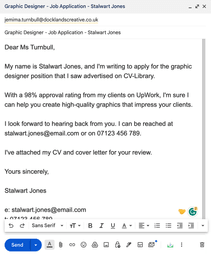
Sending a CV by Email: Template
Copy and paste this text into your email, and then alter the information in square brackets to make it about you:
CV Email Template
Dear [Recruiting Manager’s Name],
My name is [Your Name], and I’m emailing you to apply for the [Position Name] role that you’re advertising on [Website Name].
Known for [Skill or Impressive Achievement], I’m sure I’d be a great addition to your team.
I look forward to hearing back from you. I’m available for an interview at your convenience — you can reach me anytime on [Phone Number] or at [Email Address].
Yours sincerely,
[Your Name]
e: [Your Email Address]
t: [Your Phone Number]
l: [Your LinkedIn]
Once you’ve written the body of the email, attach your CV and cover letter and you’ll be ready to send out your application.
Emailing a CV: 5 Steps
Want more information about how to send your CV by email? Here are our full instructions for sending a CV through email:
1. Save your CV in Word or PDF format
Before you start writing your CV email, you’ll need to write your CV and then save it in a good file format. The best file formats for your CV (and cover letter) are docx (Microsoft Word) and PDF. That’s because all employers will have the right software to open these kinds of files.
To save your document in these formats in Microsoft Word:
- Open your CV in Microsoft Word
- Go to File → Save As…
- Choose a file name and select either ‘Word Document (.docx)’ or ‘PDF’ under File Format
- Click Save
In Google Docs:
- Open your CV
- Go to File → Download…
- Select ‘Microsoft Word (docx)’ or ‘PDF document (.pdf)’ under File Format
- Check your Downloads folder or click the document at the bottom of your web browser to open it
Make sure you remember where you saved it, because you’ll need to attach it to your email later.
2. Include a direct subject line in your email
Start your email with a subject line that makes it clear to the employer what the email is about.
Essentially, your subject line should include:
- your full name
- the words ‘job application’ or something similar
- the job title you’re applying for
Some good examples of subject lines include
- Jack Peterson – Marketing Manager Job Application
- Ruby Patel — Front Desk Application
- Jacinda Cleary: Chief IT Officer Job Application
3. Write a short message in the body of your email
You’ll need to write a short message in your email that explains why you’re writing (unless you’re writing a full-length email cover letter, where your entire cover letter is sent in the body of your email).
Start by introducing yourself, stating which job you’re applying for, and where you found it.
Good opening sentence
My name is Jo Brill, and I’m emailing you to apply for the Staff Nurse role that you’re advertising on Reed.
Next, explain briefly why you’d make a good hire (you can expand in more detail when you write your cover letter, so try not to repeat it here). For example:
Summing up why you’d be a great fit
Having worked for The Princess Alexandra Hospital NHS Trust for 7 years, I know I have the experience you’re looking for.
Afterwards, provide your contact details:
A call to action
I’m excited to talk about this prospect. You can reach me on 07123 456 789 or at [email protected].
Finally, sign your name and add a signature that contains your contact details and links to any relevant websites or provides any other relevant details.
A clear sign-off and signature
Best wishes,
Jo
e: [email protected]
t: 07123 456 789
l: linkedin.com/in/jo.brill
NMC Pin: 123 4567
4. Attach your CV and cover letter to your email
Remember where you saved your CV and cover letter? It’s time to attach them to your email. Find your email app’s attach button and add them to your application. Similarly to your subject line, your attached files should be saved with a file name that includes:
- your name
- the words ‘cv’ or ‘cover letter’
- the job title
For example, Bart-Simmons-CV-Tattoo-Artist.pdf
5. Send yourself or a friend a test email
It can be a good idea to send your job application email to yourself or a friend. Doing so lets you see whether your formatting is set up correctly, check your attachments open properly, and scout for typos or errors.


